Hex

Hex
BI Tools
Bring Hex project and dashboard metadata into your catalog.
Overview
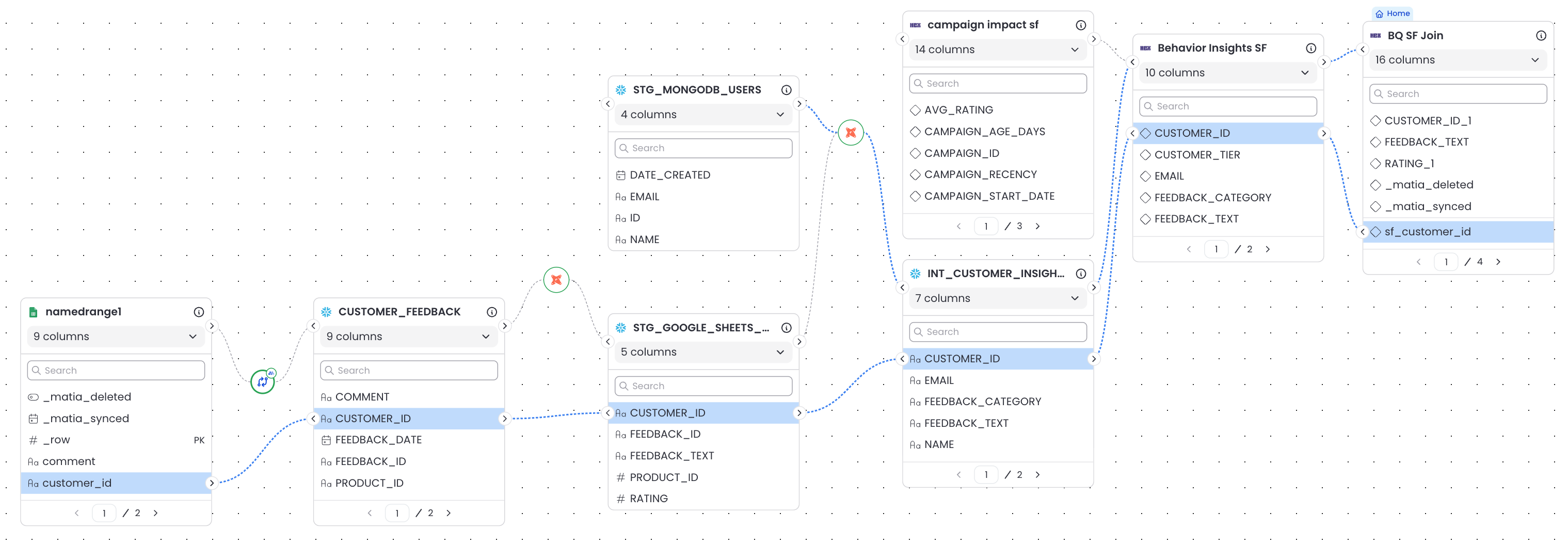
Catalog your Hex notebooks, apps, and dashboard metadata, and trace every field back to the warehouse tables that power them.

Features
| Feature Name | Supported | Notes |
|---|---|---|
| Authentication | ✓ | API Key (Workspace Token) |
| Catalog Discovery | ✓ | Projects, Notebooks, Dashboards, Fields |
| Table-level Lineage | ✓ | Traces Hex assets to upstream warehouse tables via the semantic model |
| Column-level Lineage | ✓ | Parses SQL expressions in query presentations to trace fields to warehouse columns |
| Supported Warehouses | ✓ | Snowflake, BigQuery, Databricks |
Prerequisites
Before connecting Omni, you need:
- Access to a Hex workspace with permission to create Workspace Tokens
- A Snowflake, BigQuery, or Databricks asset already connected in Matia — this is required to enable lineage between Hex and your warehouse
What Gets Cataloged?
Matia syncs the following Hex objects into your catalog:
| Hex Object | Cataloged as | Notes |
|---|---|---|
| Project | Asset | The top-level container for notebooks and dashboards |
| SQL Cell | Asset | Queries and dataframes between warehouse data and other cells |
| Python Cell | Asset | Python dataframe outputs referenced in downstream cells |
| Explore Cell | Asset | Individual visualizations within a project |
| Field / Column | Field | Dimensions and measures resolved from query context |
The resulting lineage chain in Matia runs:
Warehouse Table → SQL Cell → Explore Cell
For Python outputs, only downstream lineage at the table level is detected.
The resulting lineage chain in Matia runs:
Python Cell → SQL/Explore Cell
Column-level lineage narrows this further. When a visualization contains a SQL expression, Matia parses it to link individual fields back to the specific warehouse columns they reference.
Next Steps
- Setup Guide — Connect Hex
- Release Notes — See recent changes