Snowflake Setup Guide
Prerequisites
A Snowflake account with the ACCOUNTADMIN role. If you don’t have an account with the ACCOUNTADMIN role, contact your Snowflake administrator to set one up for you.
At Matia, we adopt a least-privileged approach, enabling us to monitor changes in mirrored Snowflake tables and segregate our operations using distinct roles, warehouses, and databases.
Setup Guide
- Fill out the Account Information in the form of
organization_id-account_id.
- To locate the two fields, log into your Snowflake Account.
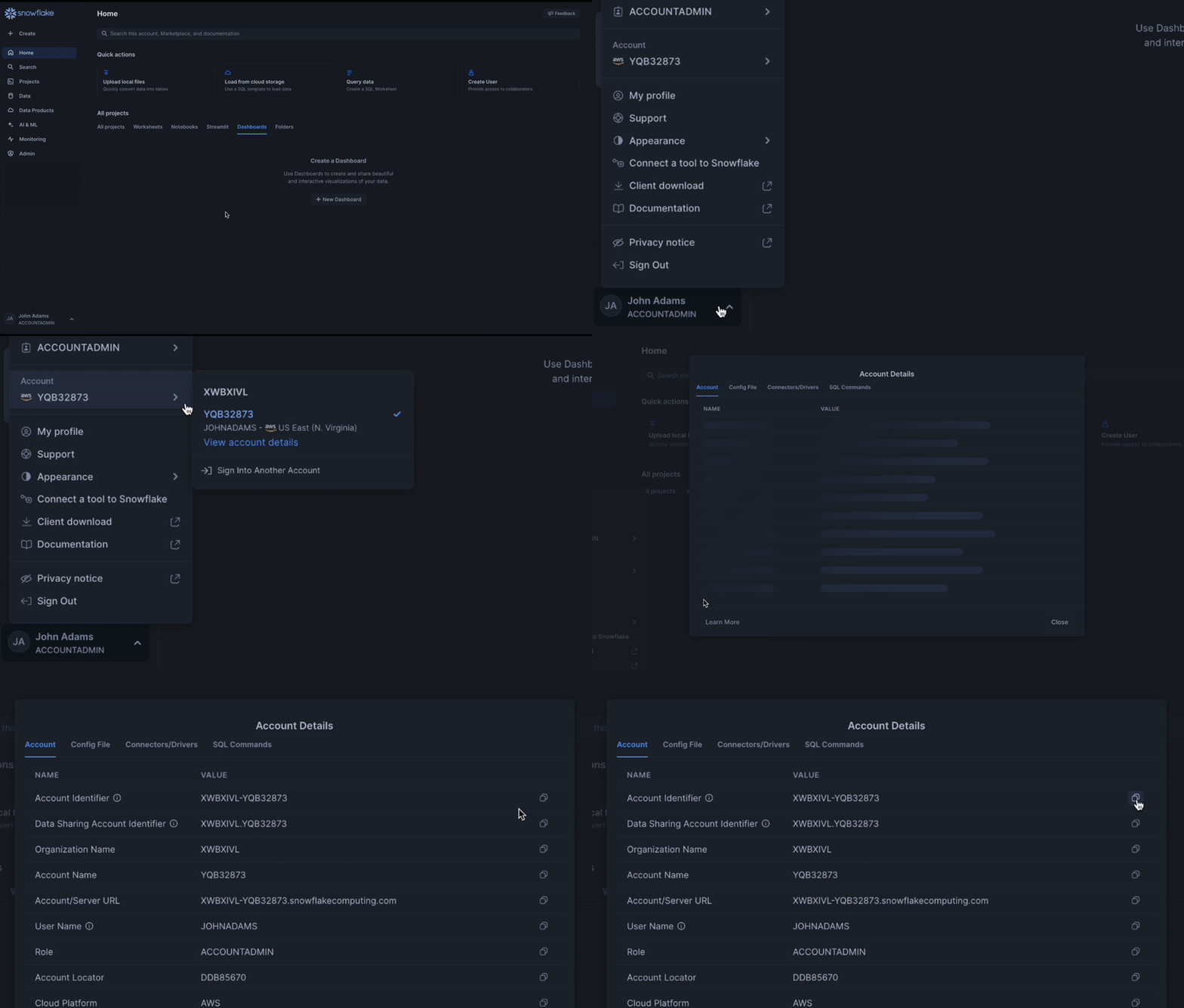
- Click on your username at the bottom left side of the screen and select your account from the menu.
- Locate the account you’re signed into in the sub-menu (if you’re signed in to more than one account), and select View account details.
- From the modal that was opened, copy the value of Account Identifier and paste it into Matia.
- If your organization uses an IP Whitelist to manage Snowflake access, adding the following Matia IPs would be required to connect Snowflake to Matia. Run the following query on Snowflake to allow Matia to access Snowflake:
CREATE NETWORK RULE ALLOW_MATIA_IP_ACCESS
   MODE = INGRESS
   TYPE = IPV4
   VALUE_LIST = ('52.20.96.22/32', '23.21.86.124/32', '44.219.180.239/32');

CREATE NETWORK POLICY ALLOW_MATIA_IP_POLICY
   ALLOWED_NETWORK_RULE_LIST = ('ALLOW_MATIA_IP_ACCESS');
Configure key-pair authentication
- Snowflake will soon deprecate password authentication for service users, which is why we recommend authenticating via key-pair.
- Snowflake requires, at a minimum, a 2048-bit RSA key pair.
- Begin by launching your command line interface (Terminal, Command Prompt, or similar) on your local machine.
- Generate the Private Key - You can create either an unencrypted or encrypted private key, depending on your security requirements:
- To generate an unencrypted private key, run one of the following commands:
openssl genrsa -out rsa_key.pem 2048
openssl genrsa 2048 | openssl pkcs8 -topk8 -inform PEM -out rsa_key.p8 -nocrypt
- To generate an encrypted private key, run:
openssl genrsa 2048 | openssl pkcs8 -topk8 -v2 des3 -inform PEM -out rsa_key.p8
- You will be prompted to set a passphrase to protect the private key. The -v2 des3 option specifies the encryption algorithm (you may choose alternatives such as aes128, aes256, etc.).
- Generate the Public Key - Once the private key is created, generate the corresponding public key:
- If your private key is stored in rsa_key.p8, use:
openssl rsa -in rsa_key.p8 -pubout -out rsa_key.pub
- This extracts the public key in PEM format from the private key file.
- Fill out keys on Matia
- Please select the desired authentication method depending on whether you chose to generate an unencrypted or encrypted private key
- Paste the entire private key (use Cmd + A to select all), including any empty lines. If the key is encrypted, please also enter the - passphrase used during encryption. example:
- When you generate the public key the output will be in PEM format and look like:
-----BEGIN PUBLIC KEY-----
ABCDEFG...
-----END PUBLIC KEY-----
Setup script for Snowflake service credentials
-
Copy and run the following script using the Worksheet page or Snowflake:
Note: If you changed the default Matia username, Matia warehouse or default database in any of the sections, make sure to change them in the script as well
--
-- Snowflake Setup Script
--
--
-- ETL Setup Script
--

set etl_role_name = 'MATIA_ETL_ROLE';
set etl_user_name = 'MATIA_ETL_USER';
set etl_warehouse_name = 'MATIA_ETL_WAREHOUSE';
set etl_database_name = 'MATIA_DATABASE';

begin;
  -- Use securityadmin for user/role setup
  use role securityadmin;

  -- Create role
  create role if not exists identifier($etl_role_name);
  grant role identifier($etl_role_name) to role SYSADMIN;

  -- Create user
  create user if not exists identifier($etl_user_name)
    default_role = $etl_role_name
    default_warehouse = $etl_warehouse_name;
  alter user identifier($etl_user_name)
    set rsa_public_key = 'YOUR_PUBLIC_KEY';

  grant role identifier($etl_role_name) to user identifier($etl_user_name);
  alter user identifier($etl_user_name) set BINARY_INPUT_FORMAT = 'BASE64';

  -- Use sysadmin for warehouse/db
  use role sysadmin;

  -- Create warehouse
  create warehouse if not exists identifier($etl_warehouse_name)
    warehouse_size = xsmall
    warehouse_type = standard
    auto_suspend = 60
    auto_resume = true
    initially_suspended = true;

  -- Create database
  create database if not exists identifier($etl_database_name);


  -- Grant access
  grant usage on warehouse identifier($etl_warehouse_name) to role identifier($etl_role_name);
  grant create schema, monitor, usage on database identifier($etl_database_name) to role identifier($etl_role_name);


commit;

-- Integration setup (GCP only)
use role accountadmin;
grant create integration on account to role identifier($etl_role_name);

--
-- Reverse ETL Setup Script
--

set retl_role_name = 'MATIA_RETL_ROLE';
set retl_user_name = 'MATIA_RETL_USER';
set retl_warehouse_name = 'MATIA_RETL_WAREHOUSE';

-- Use securityadmin for user/role setup
use role securityadmin;

-- Create role
create role if not exists identifier($retl_role_name);
grant role identifier($retl_role_name) to role SYSADMIN;

-- Create user
create user if not exists identifier($retl_user_name)
  default_role = $retl_role_name
  default_warehouse = $retl_warehouse_name;
alter user identifier($retl_user_name)
  set rsa_public_key = 'YOUR_PUBLIC_KEY';

grant role identifier($retl_role_name) to user identifier($retl_user_name);

-- Use accountadmin for `prevent_unload_to_inline_url`
use role accountadmin;

alter user identifier($retl_user_name) set prevent_unload_to_inline_url = false;

-- Use sysadmin for warehouse/db
use role sysadmin;

create warehouse if not exists identifier($retl_warehouse_name)
  warehouse_size = xsmall
  auto_suspend = 60
  auto_resume = true
  initially_suspended = false;

grant usage    on warehouse identifier($retl_warehouse_name) to role identifier($retl_role_name);
grant operate  on warehouse identifier($retl_warehouse_name) to role identifier($retl_role_name);
grant monitor  on warehouse identifier($retl_warehouse_name) to role identifier($retl_role_name);


DECLARE
  retl_db_schema_pairs ARRAY;
  i INT := 0;
  arr_len INT;
  current_db STRING;
  current_schema STRING;
BEGIN
  retl_db_schema_pairs := ARRAY_CONSTRUCT(
    OBJECT_CONSTRUCT('database', 'MATIA_DATABASE', 'schema', 'PUBLIC')
  );
  arr_len := ARRAY_SIZE(retl_db_schema_pairs);

  -- Use accountadmin to allow grants
  use role accountadmin;

  WHILE (i < arr_len) DO
    current_db := retl_db_schema_pairs[i]:database::string;
    current_schema := retl_db_schema_pairs[i]:schema::string;

    EXECUTE IMMEDIATE
      'grant usage on database identifier(''' || current_db || ''') to role identifier(''' || $retl_role_name || ''')';
    EXECUTE IMMEDIATE
      'grant usage on schema "' || current_db || '"."' || current_schema || '" to role identifier(''' || $retl_role_name || ''')';
    EXECUTE IMMEDIATE
      'grant select on all tables in schema "' || current_db || '"."' || current_schema || '" to role identifier' || '(''' || $retl_role_name || ''')';
    EXECUTE IMMEDIATE
      'grant select on future tables in schema "' || current_db || '"."' || current_schema || '" to role ' || 'identifier' || '(''' || $retl_role_name || ''')';
    EXECUTE IMMEDIATE
      'grant select on all views in schema "' || current_db || '"."' || current_schema || '" to role identifier' || '(''' || $retl_role_name || ''')';
    EXECUTE IMMEDIATE
      'grant select on future views in schema "' || current_db || '"."' || current_schema || '" to role ' || 'identifier' || '(''' || $retl_role_name || ''')';
    EXECUTE IMMEDIATE
      'grant usage on all functions in schema "' || current_db || '"."' || current_schema || '" to role ' || 'identifier' || '(''' || $retl_role_name || ''')';
    EXECUTE IMMEDIATE
      'grant usage on future functions in schema "' || current_db || '"."' || current_schema || '" to role ' || 'identifier' || '(''' || $retl_role_name || ''')';

  i := i + 1;
  END WHILE;
END;


-- Create audit database
create database if not exists "MATIA_AUDIT";
grant all privileges on database "MATIA_AUDIT" to role identifier($retl_role_name);
create schema if not exists "MATIA_AUDIT"."RETL";
grant all privileges on schema "MATIA_AUDIT"."RETL" to role identifier($retl_role_name);
grant create stage on schema "MATIA_AUDIT"."RETL" to role identifier($retl_role_name);

--
-- ETL Source Setup Script
--

set etl_source_role_name = 'MATIA_ETL_SOURCE_ROLE';
set etl_source_user_name = 'MATIA_ETL_SOURCE_USER';
set etl_source_warehouse_name = 'MATIA_ETL_SOURCE_WAREHOUSE';
set etl_source_database_name = 'MATIA_DATABASE';

-- Use securityadmin for user/role setup
use role securityadmin;

create role if not exists identifier($etl_source_role_name);
grant role identifier($etl_source_role_name) to role SYSADMIN;

create user if not exists identifier($etl_source_user_name)
  default_role = $etl_source_role_name
  default_warehouse = $etl_source_warehouse_name;
alter user identifier($etl_source_user_name)
  set rsa_public_key = 'YOUR_PUBLIC_KEY';

grant role identifier($etl_source_role_name) to user identifier($etl_source_user_name);

-- Use sysadmin for warehouse
use role sysadmin;

create warehouse if not exists identifier($etl_source_warehouse_name)
  warehouse_size = xsmall
  warehouse_type = standard
  auto_suspend = 60
  auto_resume = true
  initially_suspended = true;

grant usage on warehouse identifier($etl_source_warehouse_name) to role identifier($etl_source_role_name);

-- Use accountadmin to allow database-wide grants
use role accountadmin;

-- Read access across the source database
grant usage on database identifier($etl_source_database_name) to role identifier($etl_source_role_name);
grant usage on all schemas in database identifier($etl_source_database_name) to role identifier($etl_source_role_name);
grant usage on future schemas in database identifier($etl_source_database_name) to role identifier($etl_source_role_name);
grant select on all tables in database identifier($etl_source_database_name) to role identifier($etl_source_role_name);
grant select on future tables in database identifier($etl_source_database_name) to role identifier($etl_source_role_name);
grant select on all views in database identifier($etl_source_database_name) to role identifier($etl_source_role_name);
grant select on future views in database identifier($etl_source_database_name) to role identifier($etl_source_role_name);

grant create schema on database identifier($etl_source_database_name) to role identifier($etl_source_role_name);

--
-- Observability & Cataloging Setup Script
--

set role_name = 'MATIA_ROLE';
set user_name = 'MATIA_USER';
set warehouse_name = 'MATIA_WAREHOUSE';

-- Use securityadmin for user/role setup
use role securityadmin;

create role if not exists identifier($role_name);
grant role identifier($role_name) to role SYSADMIN;

create user if not exists identifier($user_name)
  default_role = $role_name
  default_warehouse = $warehouse_name;
alter user identifier($user_name)
  set rsa_public_key = 'YOUR_PUBLIC_KEY';

grant role identifier($role_name) to user identifier($user_name);
-- Use sysadmin for warehouse/db
use role sysadmin;

create warehouse if not exists identifier($warehouse_name)
  warehouse_size = xsmall
  warehouse_type = standard
  auto_suspend = 5
  auto_resume = true
  initially_suspended = true
  max_concurrency_level = 30
  statement_timeout_in_seconds = 300
  statement_queued_timeout_in_seconds = 1200;

grant usage on warehouse identifier($warehouse_name) to role identifier($role_name);

-- Use accountadmin to allow grants
use role accountadmin;

grant monitor execution on account to role identifier($role_name);
grant imported privileges on database "SNOWFLAKE" to role identifier($role_name);


-- Grant all of the permissions of the ETL, RETL and ETL Source users to the observability user
-- ETL
grant role identifier($etl_role_name) to user identifier($user_name);
-- RETL
grant role identifier($retl_role_name) to user identifier($user_name);
-- ETL Source
grant role identifier($etl_source_role_name) to user identifier($user_name);
- Run the script using the Worksheet page or Snowsight.
Configure Matia Connection
In Matia UI:
- Input an Asset Name to serve as an identifier for this Asset on Matia
- Input an Asset Description to provide additional information regarding the purpose of the Asset
- Assign 1 or more owners to the Asset.
- Test Connection: Verify that your Snowflake account is successfully connected by clicking on Test Connection.