Databricks Setup Guide
Prerequisites
This page guides you through the process of setting up the Databricks destination connector.
Provide the following fields: Server Hostname, Port, HTTP Path
Get Server Hostname, Port, and HTTP path.
-
Log in to your Databricks workspace.
-
Select SQL Warehouses tab on left notification
-
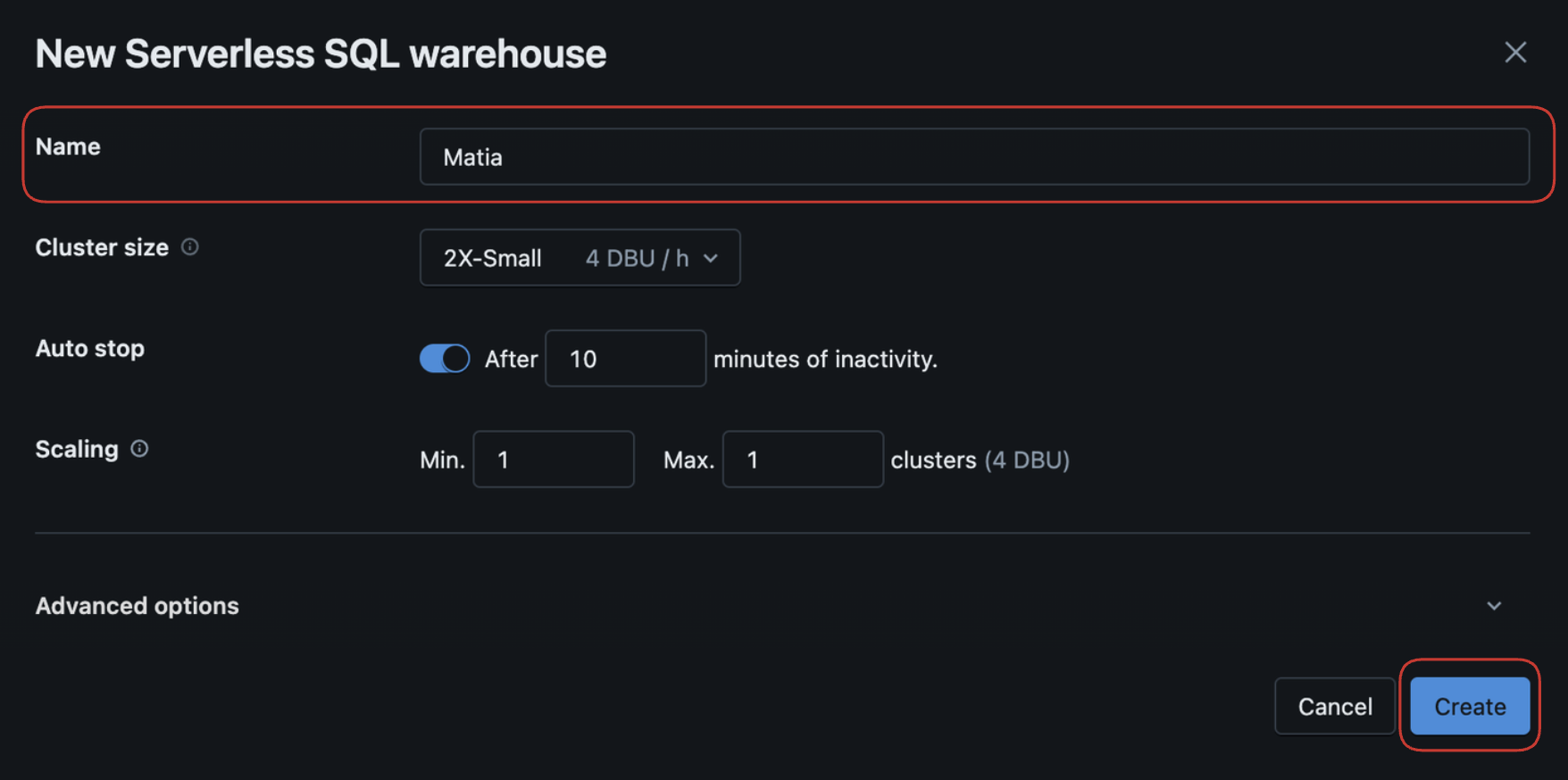
Create new Matia SQL Warehouse.

-
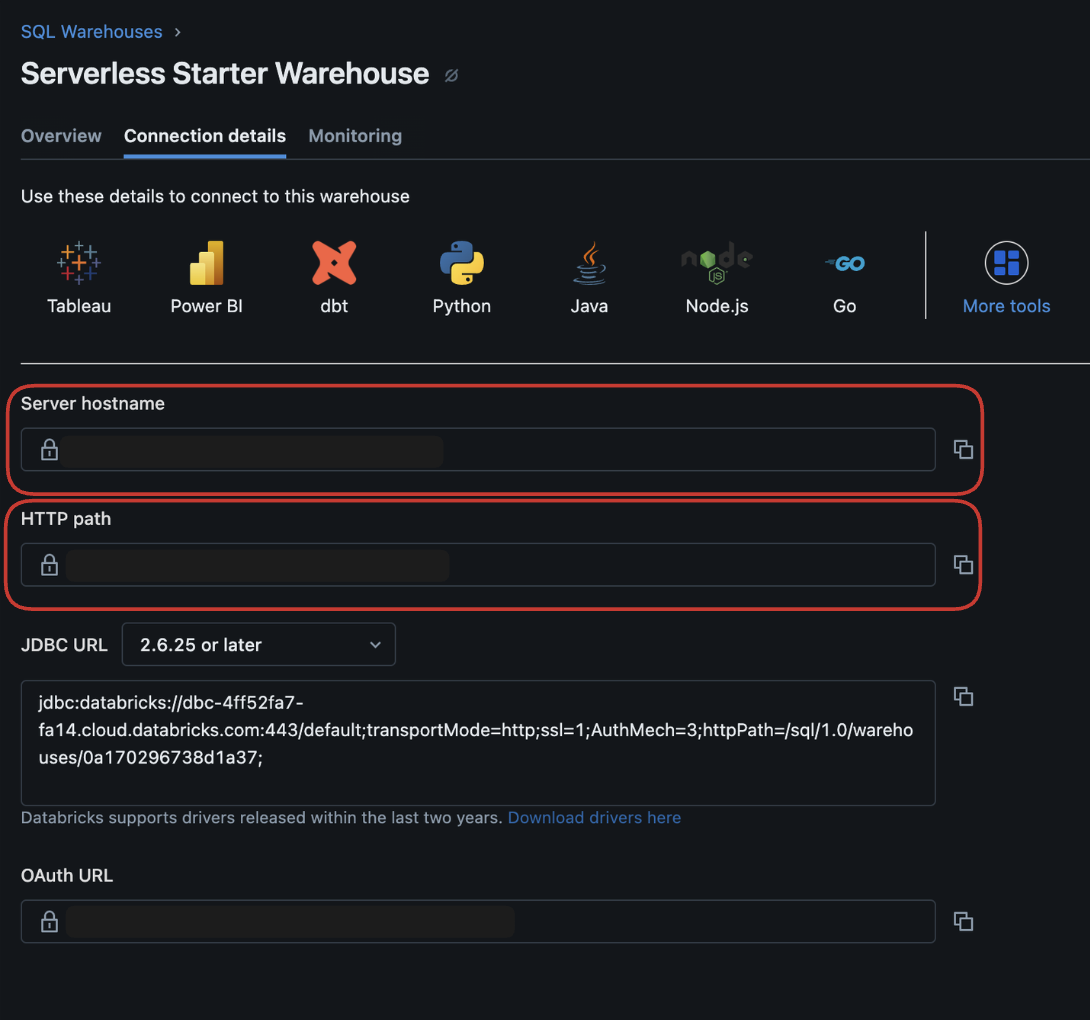
Navigate to the Connection Details tab and copy the Server Hostname, HTTP Path, and Port. If the port is not displayed, enter
443.
-
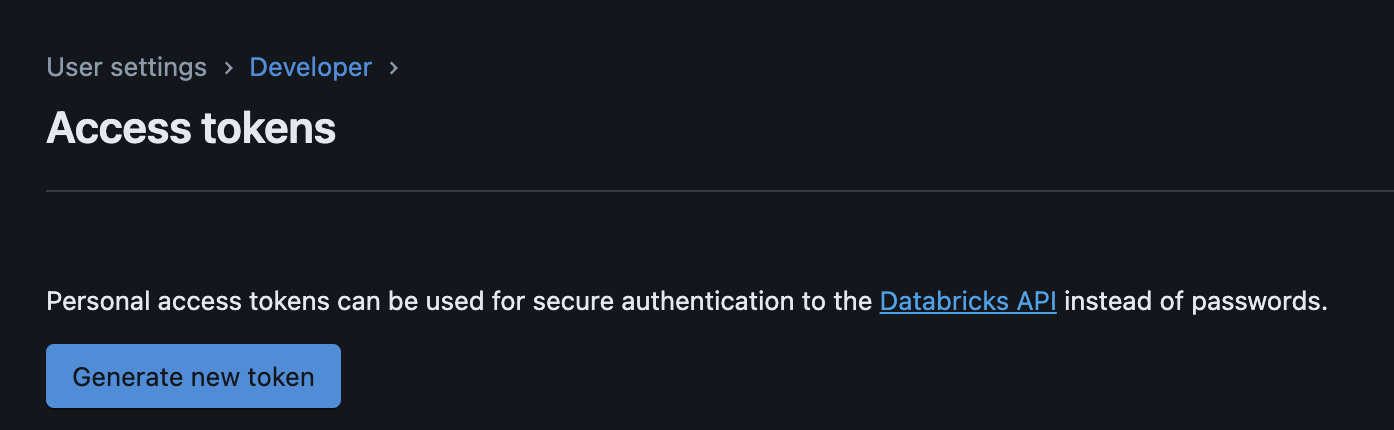
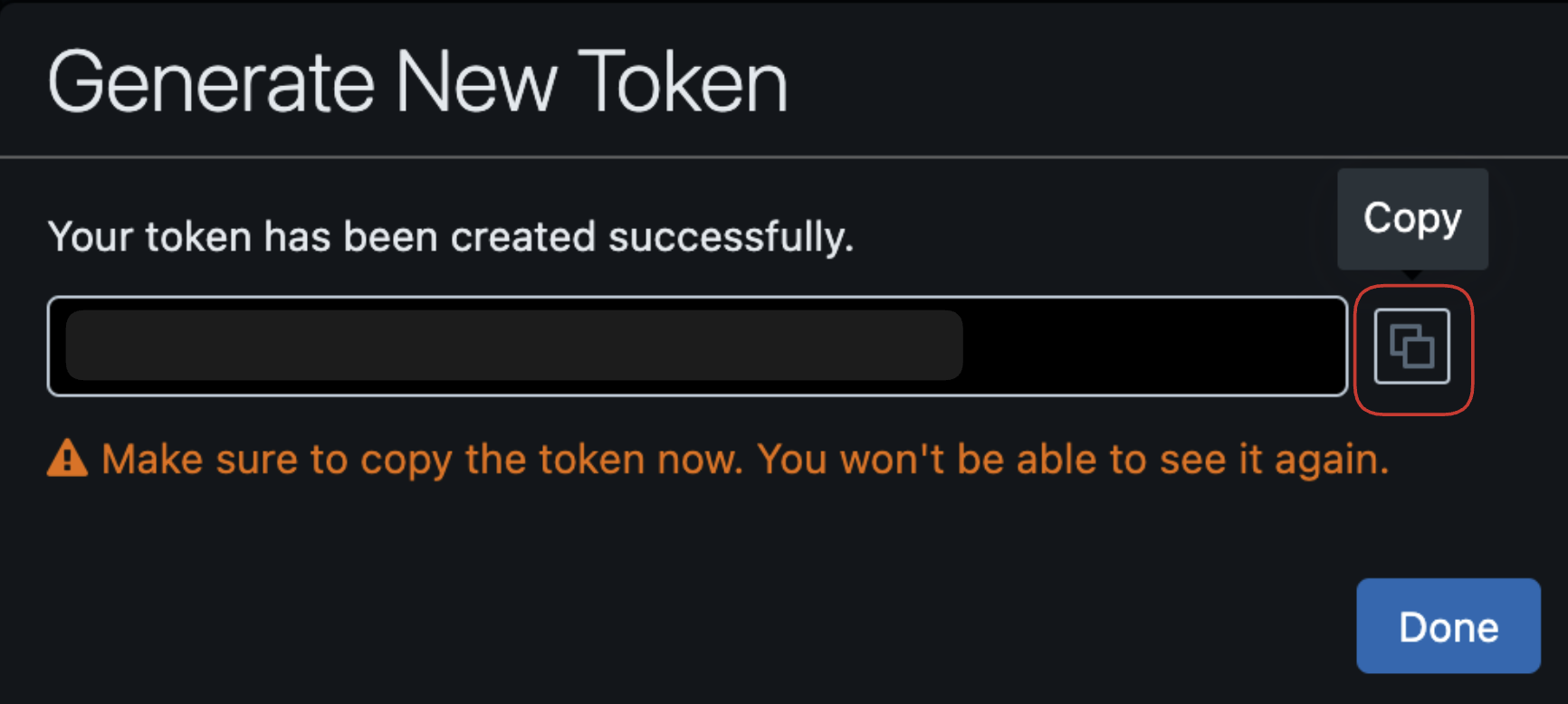
Authentication - Matia is supporting Access Token Authentication, you can follow Databricks personal access token authentication Or click on "Create a personal access token" in Connection details tab.
Setup Guide Required Permissions
Create audit schema.
CREATE SCHEMA IF NOT EXISTS MATIA_AUDIT_RETL;

-- For personal access tokens, use an email address:
GRANT USE SCHEMA, SELECT, CREATE TABLE, MODIFY ON SCHEMA [your_default_catalog].MATIA_AUDIT_RETL TO `user_you_plan_use_with_pat@yourcompany.com`;
General Settings
After the commands above were performed you will be able to go ahead and provide the parameters of you newly existing resources.
- Fill in the Server Hostname, Port, HTTP Path for your Databricks database.
- Enter a Name for the connector.
- (Optional) Enter a Description for the connector.
- Select the Owner of the connector.
- (Optional) Verify that your Databricks database is successfully connected by clicking on Test Connection.
- Click Connect.