Google Drive Setup Guide
Pre-requisites
- A Google Drive account
- A Google Drive folder URL to the folder you wish to be synced.
- The ability to share the folder with our service account email.
Setup Guide
Step 1: Share Google Drive folder with Matia
- Find the auto-generated email address of the Matia service account and make a note of it. You will need it to share your Google Drive folder with Matia.
- Log in to your Google Drive account and navigate to the folder you want to sync the files.
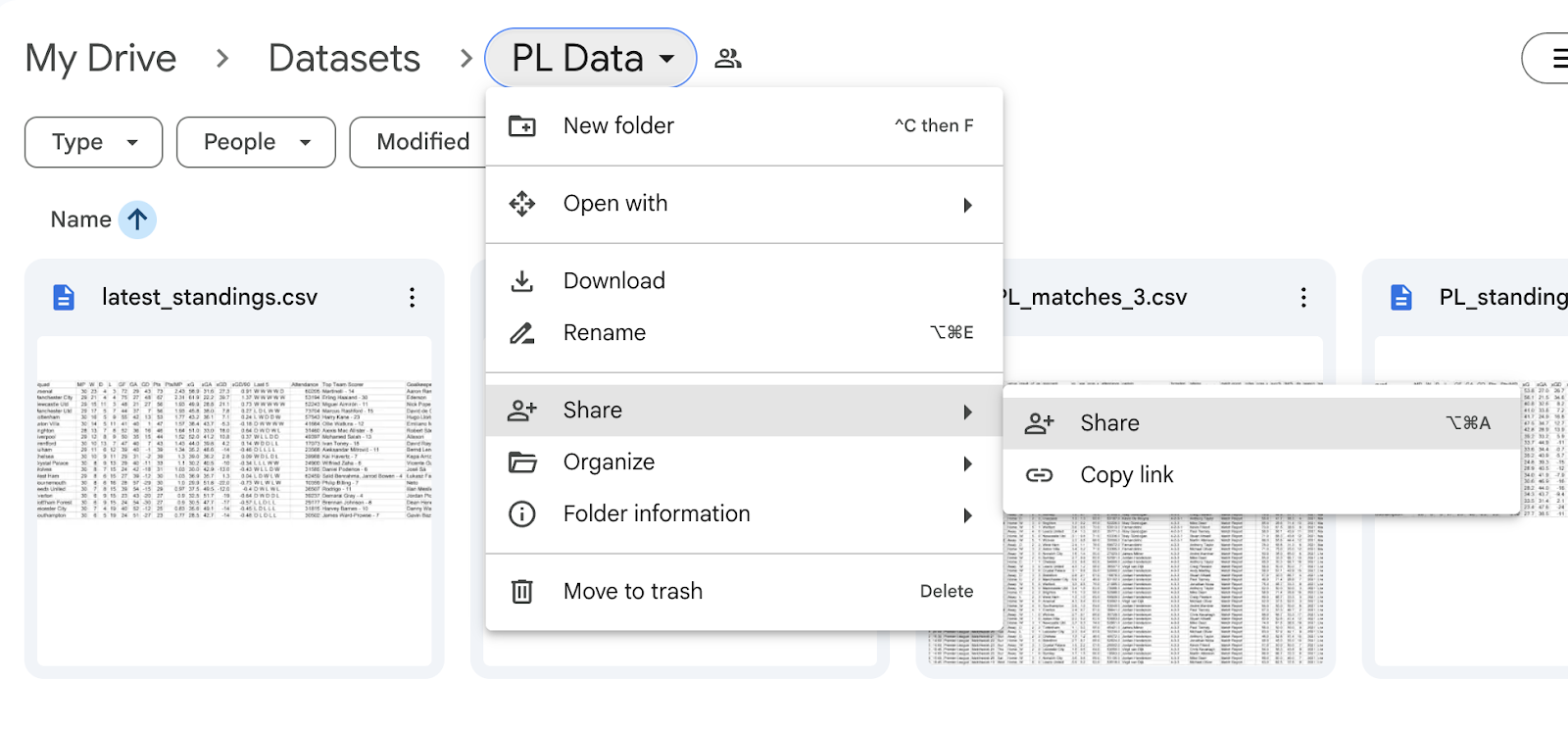
- Click the folder you want to sync and click Share from the drop-down menu.
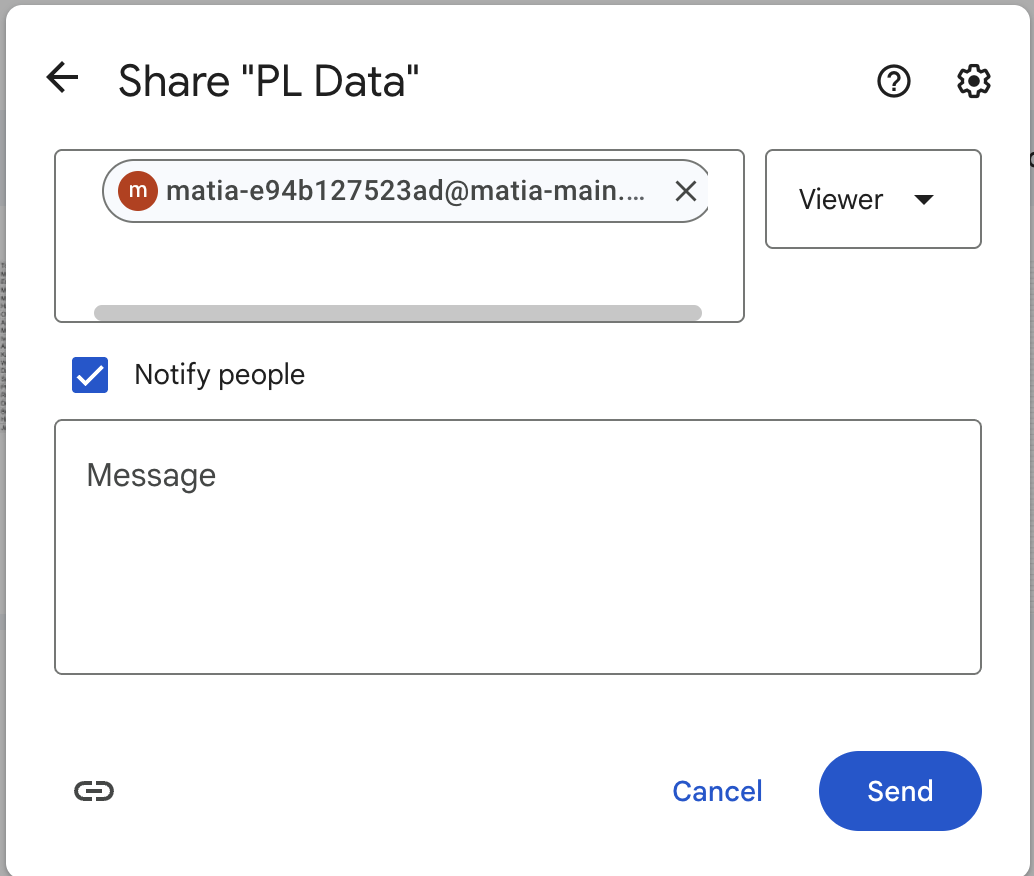
- In the Share with people and groups pop-up window, enter the email address of the Matia service account.
- Select Viewer permissions and then click Send.
-
Copy the URL from google drive folder for authentication in Matia. (e.g https://drive.google.com/drive/folders/xxxxxxxx)
The URL should specify the folder path in your Google Drive in which you'd like Matia to look for files. Make sure your URL looks similar to the one illustrated below. You may opt to include the https:// while entering the URL link.
https://drive.google.com/drive/folders/1jIHAwecNaHunkIfYlbjaS\_WIRSUOIgG0
Step 2: Complete Configuration in Matia
- Paste the folder URL into the required field under “Authentication”.
- Enter Asset Name
- (Optional) Enter Asset Description
- (Optional) Assign Tags
- Verify that your Google Drive account is successfully connected by clicking on Test Connection.
- Click Connect
Final Setup Page Options:
Choose a Sync Mode
| Sync Mode | Type | Description |
|---|---|---|
| Magic Folder Mode | Full refresh only, does not support incremental or nested folder structure. | Sync Each file in the chosen folder into a unique table. |
| Merge Mode | Supports incremental syncs (only updates changed or new data). | Sync All files (including those in subfolders) are combined into a single table in your destination. |
Set a File Pattern (Optional)
This filters which files to sync from the folder.
Example:
*.json → syncs only .json files.
data_*.csv → syncs files like data_2023.csv, data_2024.csv.
Leave it blank if you want to sync all files in the folder.
Select JSON Delivery Mode
Choose how you wish to structure your data in the destination:
- Packed: All data goes into one column as a JSON blob.
- Unpacked: JSON is flattened into individual columns (recommended if you want to query fields easily).
Error Handling Mode
When encountering an error, choose either:
- Fail: The sync job stops if any file throws an error.
- Skip: The sync skips over bad files and continues processing the rest.
Merge Mode – Additional Configuration: Primary Key for Upsert
When you select Merge Mode, you’ll see an option called "Primary Key for Upsert." This determines how the system updates or inserts new rows into the destination table during sync.
1. File Name and Line Number
- Use this when your files are uniquely named and only contain new, fresh data and you just want to insert new data each time or overwrite old lines in the same file.
- The system uses:
_file: the filename,_line: the line number in the file - This pair ensures each line in each file is treated as unique.
2. File Name, Line Number, and Modified
- Use this when files may contain both old and updated data, such as partial refreshes or late-arriving data. You want to maintain a more complete or versioned history.
- The system uses:
_file,_line, and_modified(last modified timestamp) - This combo allows the sync to track changes over time more intelligently.