Dbt Cloud Setup Guide
Prerequisites
- A connected data warehouse on Matia
- A DBT Cloud account (Team or Enterprise plan)
Connection Details
-
Account Identifier
- Navigate to your DBT Cloud Account Settings
- Located in the URL:
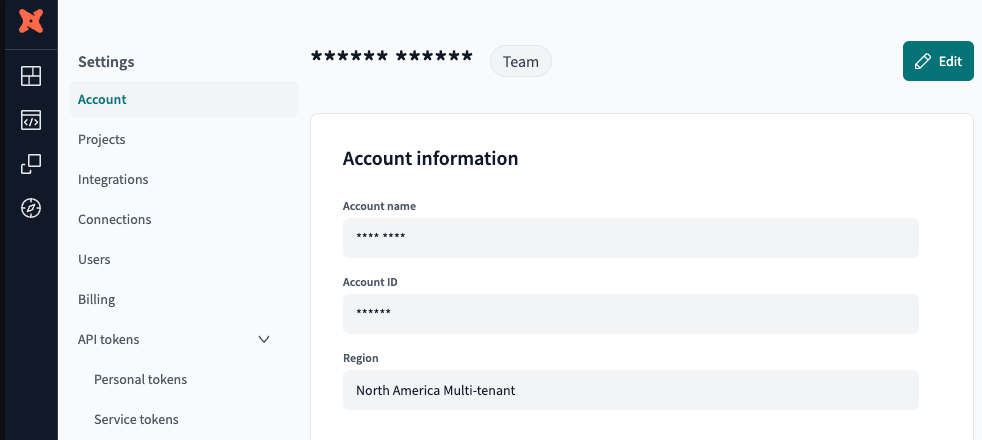
https://cloud.getdbt.com/accounts/<account-identifier>/pages/account - Once at the page you can grab the account identifier from the URL itself or from the Account ID field as seen in the screenshot below.
-
Access URL
-
The access URL varies depending on your DBT Account region.
-
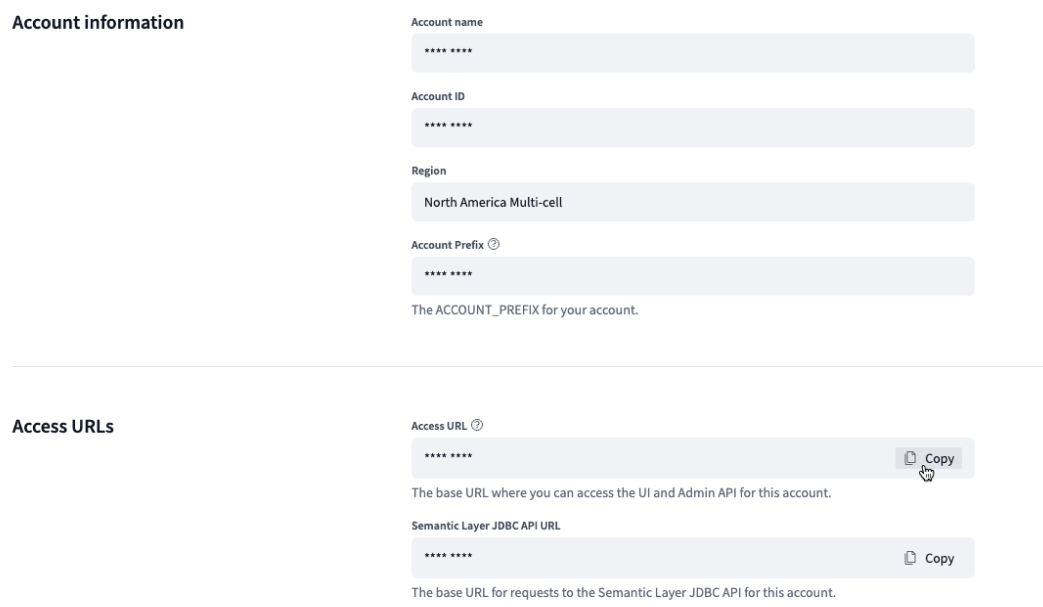
Also in your dbt Cloud Account Settings, copy the URL available under Access URL.
-
-
API Token
-
Go to your DBT Cloud Account Settings
-
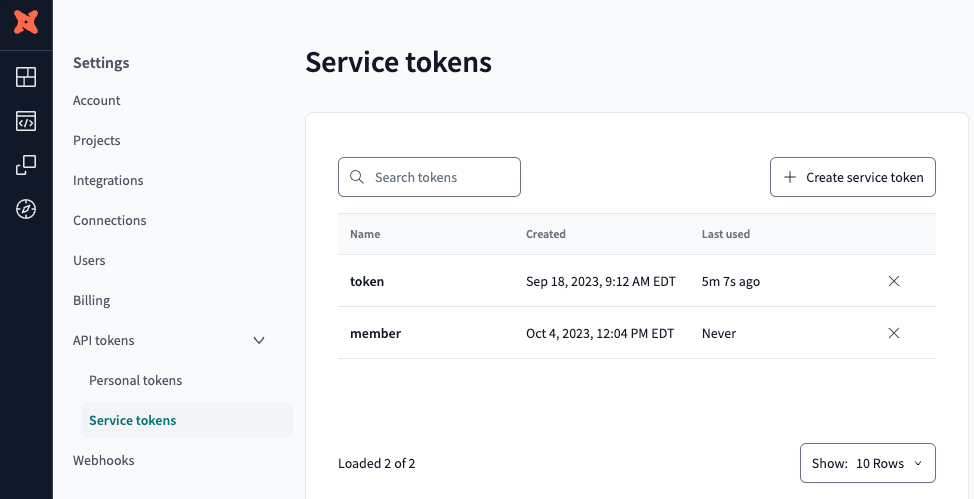
Select "Service Tokens"
-
Select Create a new token
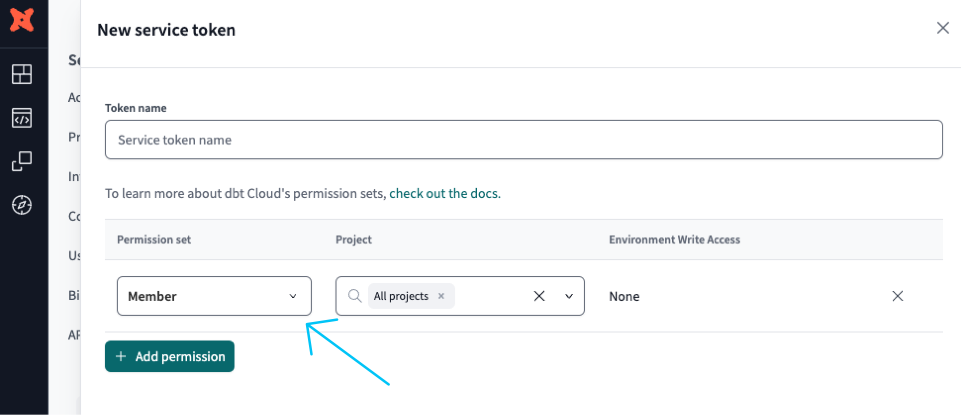
- If you are on the Team plan then set the token permission set to "Member"
- If you are on the Enterprise plan then set the token permission set to "Developer"
-
Once the new token is created copy it into Matia
-
Final Configuration
- Select the data warehouse which is defined as part of you DBT project.
- Enter a Name for the Asset.
- (Optional) Enter a Description for the Asset.
- Select the Owner of the Asset.
- (Optional) Verify that your DBT Cloud account is successfully connected by clicking on Test Connection.
- Click Connect.