BigQuery Destination Setup Guide
Pre-requisites
-
A GCP Project with BigQuery enabled.
-
A dataset already created within BigQuery to serve as the destination for synced data.
-
(Optional) If using your own custom service account, a Google Cloud Service Account with a Service Account Key file generated.
- You can create a Service account key using the Google Cloud console, the gcloud CLI, or one of the client libraries.
-
Grant access to your project by following Google's documentation on how to Manage access to projects, folders, and organizations. Your service account will need the following permissions:
- BigQuery User (roles/bigquery.user) – read the dataset's metadata and list tables in the dataset, run jobs, including queries, within the project.
- BigQuery Admin (roles/bigquery.admin) – provides full control over all BigQuery resources in the project. Create, update, delete datasets and tables, and run queries and load/export jobs.
Setup Guide
Step 1: Find your Project ID
Go to your Google Cloud Console's projects list.
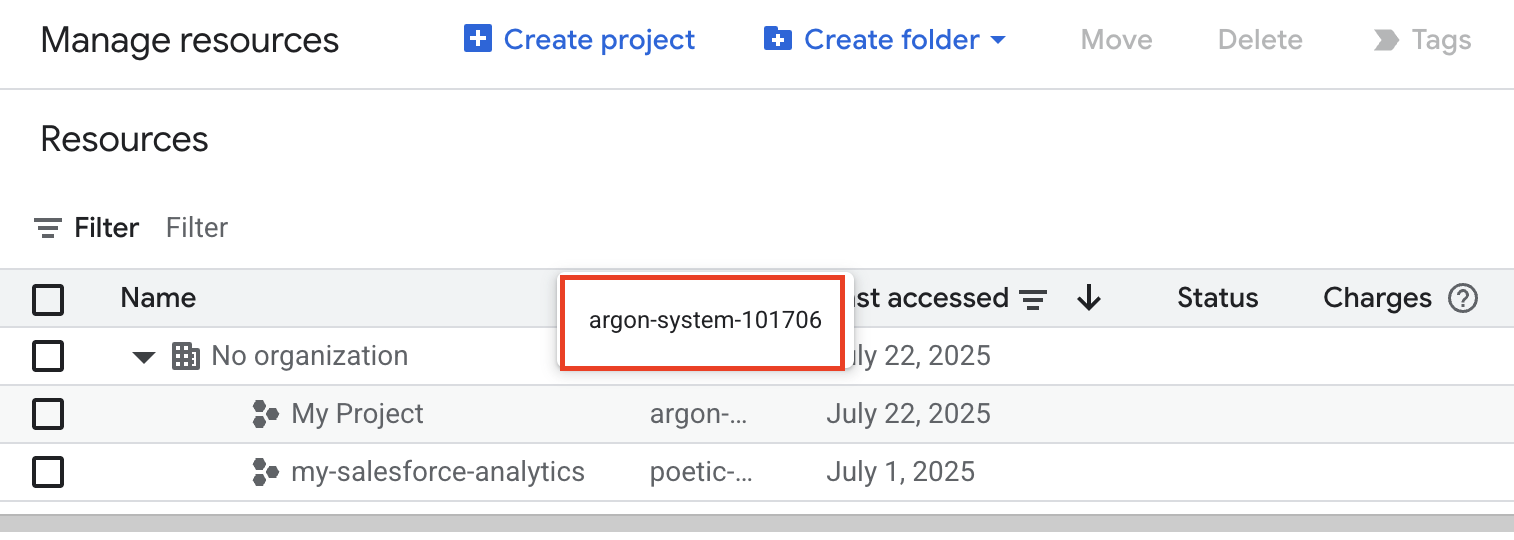
Find your project on the list and make a note of the Project ID in the ID column. You will need it to configure Matia.
Step 2: Grant Service Permissions to your Service Account
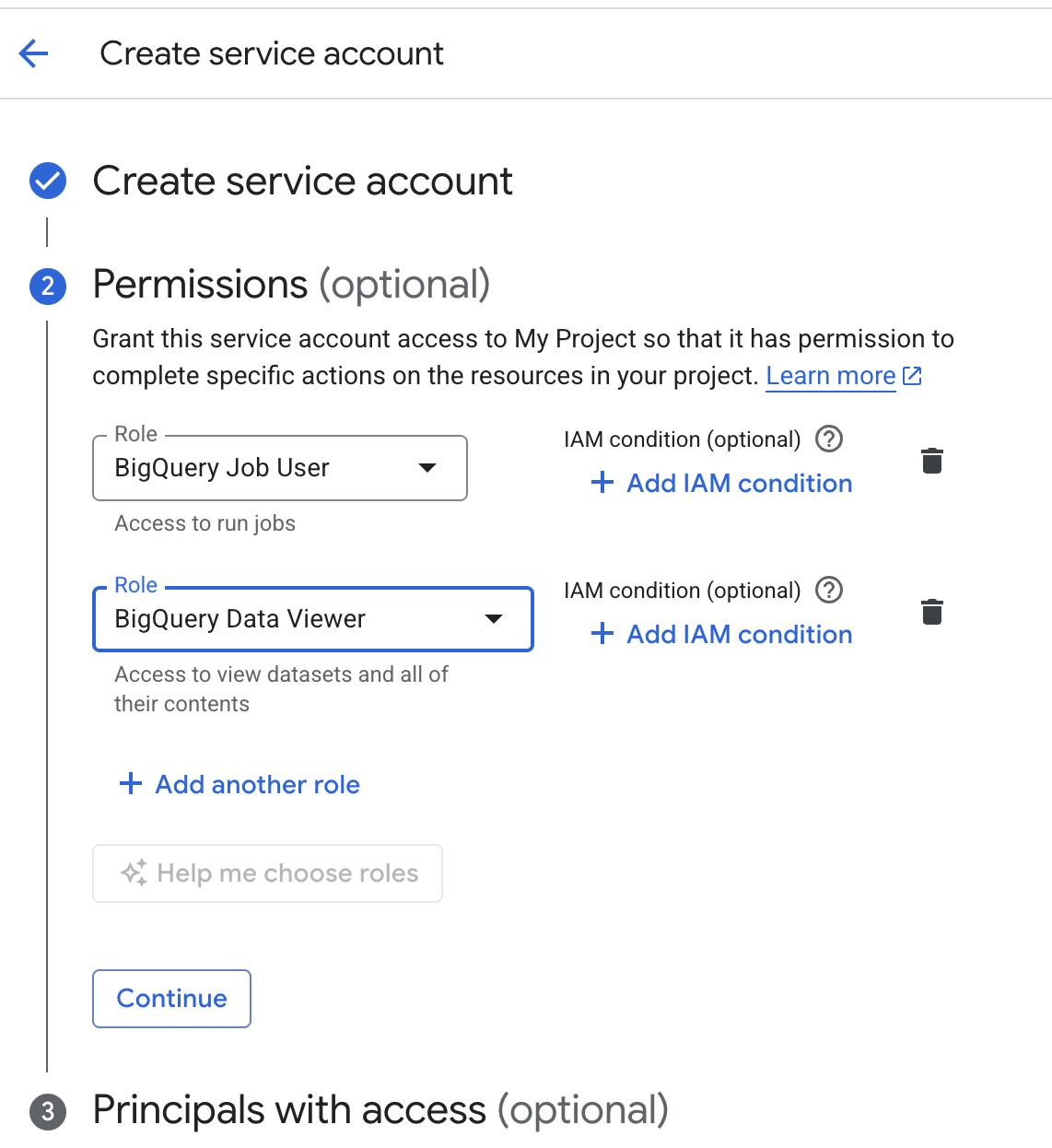
- Go to your Projects and click Create Service Account.
- Click on permissions and add permission for BigQuery Admin or BigQuery User.
Option #2: Using gcloud CLI (Dataset-level example)
You can also use the gcloud CLI to update dataset-specific access:
bq update --dataset --access \
  "entity=serviceAccount:matia-e94b127523ad@matia-main.iam.gserviceaccount.com,role=READER" \
  matia-main:your_dataset_name
Step 3: Create a Service Account Key
- Click on Create a new Service Account.
- Select the new Service Account from the list of service accounts.
- On the Keys tab, click Add key and create a new JSON key. Make a note of the entire service account key file. You will need it to configure Matia.
- The key must be in the following JSON format:
{
    "type": "service_account",
    "project_id": "PROJECT_ID",
    "private_key_id": "KEY_ID",
    "private_key": "-----BEGIN PRIVATE KEY-----\nPRIVATE_KEY\n-----END PRIVATE KEY-----\n",
    "client_email": "SERVICE_ACCOUNT_EMAIL",
    "client_id": "CLIENT_ID",
    "auth_uri": "https://accounts.google.com/o/oauth2/auth",
    "token_uri": "https://accounts.google.com/o/oauth2/token",
    "auth_provider_x509_cert_url": "https://www.googleapis.com/oauth2/v1/certs",
    "client_x509_cert_url": "https://www.googleapis.com/robot/v1/metadata/x509/SERVICE_ACCOUNT_EMAIL"
}
- PROJECT_ID: Your Google Cloud project ID. Project IDs are alphanumeric strings, like my-project.
- SA_NAME: The name of the service account that you want to create a key for.
Step 4: Grant Service Account Configuration
Option #1: At the Project level
- Go to the IAM page in Google Cloud Console.
- Select your project (e.g., matia-main).
- Click “Grant Access” (or the “+ Add” button).
- New principal: Paste the Matia service account email (either the autogenerated one or your own custom service account).
- Assign the following Big Query Roles
- Click Save.
Option #2: Grant Service Account Configuration at the Dataset level
- Go to the BigQuery Console.
- In the Explorer pane, expand your project (matia-project), you’ll see a list of datasets under the project — those are your database names.
- On the Details tab (on the right side), look for Location. This will say something like us or europe-west2.
- Click the arrow next to the dataset you want to share, then click “Sharing”.
- In the “Dataset permissions” window, click + Add Principal.
- Add the service account email
- Assign dataset-specific roles (BigQuery Data Admin or User)
- Click Done
Step 5: (Optional) Custom Endpoints
If you want Matia to reach Google APIs (BigQuery, Cloud Storage, etc.) through a private, internal endpoint instead of the public internet, set up a Private Service Connect endpoint. This is a one-time setup per VPC network — once it's created, it enables access to all Google APIs through that endpoint, not just BigQuery.
For full background, see Google's guide on Access Google APIs through endpoints.
Before you begin, make sure the following are enabled on your GCP project: the Compute Engine API, the Service Directory API, and the Cloud DNS API. Private Service Connect does not enable these for you.
- In the Google Cloud Console, go to Network Services → Private Service Connect. This is also where you'll create and manage your endpoints.
- Click the Connected Endpoints tab, then click Connect Endpoint.
- For Target, select All Google APIs (or VPC-SC if you're restricting access to APIs that support VPC Service Controls).
- For Endpoint name, enter a name of your choice — this name determines the hostname you'll use later.
- Select the Network the endpoint should live in, and select or create an IP Address for the endpoint (it must meet Google's IP address requirements).
- If prompted, choose a Service Directory region and namespace — all endpoints in a given VPC network share the same region/namespace.
- Click Add endpoint.
Once created, Service Directory automatically generates DNS records for commonly used APIs in the format:
<service>-<endpoint-name>.p.googleapis.com
For example, if you named your endpoint matia, BigQuery would be reachable at bigquery-matia.p.googleapis.com and Cloud Storage at storage-matia.p.googleapis.com. You'll use this hostnames when configuring your custom endpoint in Matia.
Step 6: (Optional) Customer Bucket
Matia can stage data in a GCS bucket before loading it into BigQuery. Setting up your own Customer Bucket is recommended if you use a VPC service perimeter to control access to BigQuery, or if you'd rather use your own bucket than a Matia-managed one.
The bucket must be in the same location as your BigQuery dataset.
Assign permissions to your service account
- In the Google Cloud Console, go to Storage → Buckets and select the bucket you want to use (or create a new one).
- Go to Permissions and click Add Principal.
- Enter the Matia service account email (either the autogenerated one or your own custom service account).
- From Select a role, choose Storage Object Admin. This lets Matia read and write data to the bucket.
- Click Save.
- Make a note of the bucket name — you'll need it to configure Matia.
Reccomended: Set a lifecycle rule
Set a lifecycle rule so that staged data older than one day is automatically deleted from the bucket:
- On the bucket's page, go to the Lifecycle tab and click Add a rule.
- Under Select an action, choose Delete object, then click Continue.
- Under Select object conditions, check Age and enter 1, then click Continue.
- Click Create.
Step 7: Complete Configuration in Matia
You have the option to use the service account autogenerated by Matia
or your own custom service account.
If you are using Matia’s autogenerated service account:
- Authorize access to your project by sharing it with the Matia service account email (either the autogenerated one or your own custom service account).
- Provide your Project ID (e.g matia-main).
- Provide your Location where your dataset is located (e.g us or europe-west1).
If you are using your own custom service account:
- Enter the Private Key from the JSON file when creating Service Account Key earlier.
- Enter the Client Email from the service account that you created.
- Enter the Project Id your BigQuery project id.
- Enter a Location where your dataset is located (e.g us east). Note: You cannot change the dataset location once the connector is created.
- Enter an Asset Name.
- (Optional) Enter an Asset Description
- (Optional) Assign Tags.
- Select an Owner.
- Verify that your BigQuery account is successfully connected by clicking on Test Connection.
- Click Connect.
Supported Streams
All tables in specified dataset are supported (Full Refresh)