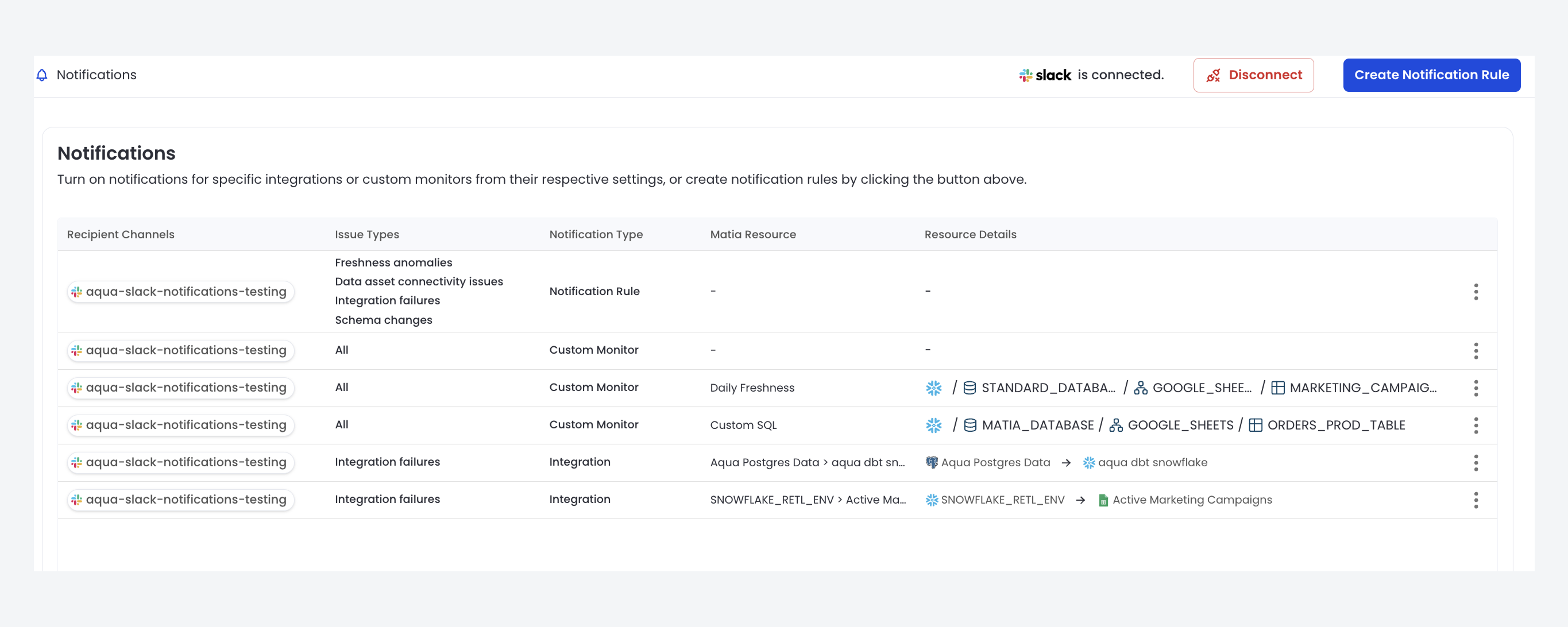
Notifications
Overview
Matia's notification system provides monitoring and alerting across your data stack. This guide describes how to set up and use notifications.
Getting Started
To use notifications:
- Navigate to the Notifications page in the sidebar under Settings.
- Click Add Notification Integration to connect Slack, PagerDuty, MS Teams or a webhook endpoint.
- After one or more notification integrations are connected, you can set up notification rules and routing.
Notification Types
Matia offers three types of notifications:
- Rule Based Notifications
- Integration Notifications
- Custom Monitor Notifications
Rule Based Notifications
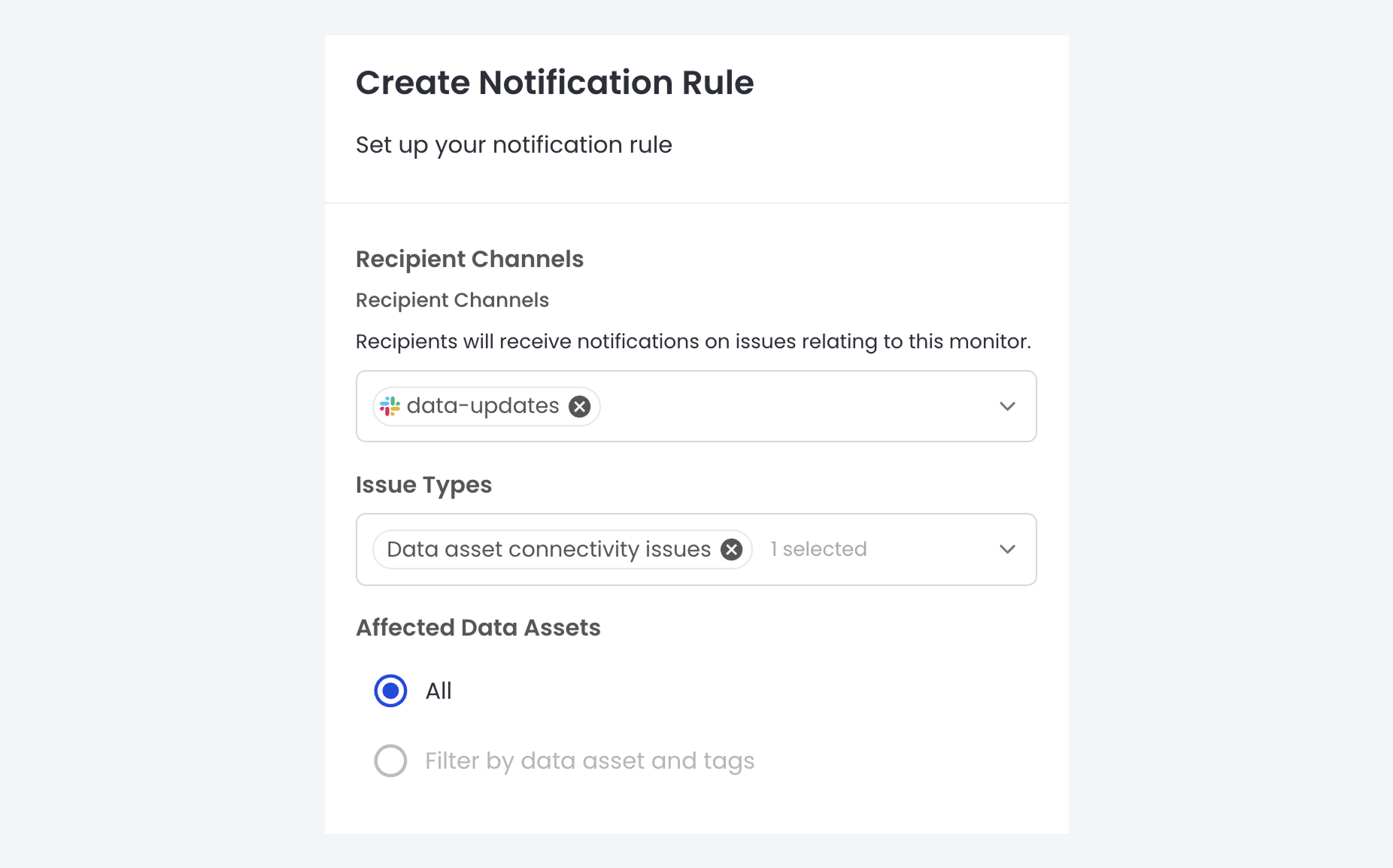
Rule Based Notifications allow you to define alert configurations for multiple assets and issue types.
To set up a new rule:
- Go to the Notifications page under Settings in the main sidebar.
- Click New Notification Rule in the top right corner.
- Select one or more recipient channels. Connect at least one notification integration first if needed.
- Choose the issue types to monitor.
- Decide whether to apply the rule to all assets or a specific subset.
- Click Save to activate the rule.
Integration Notifications
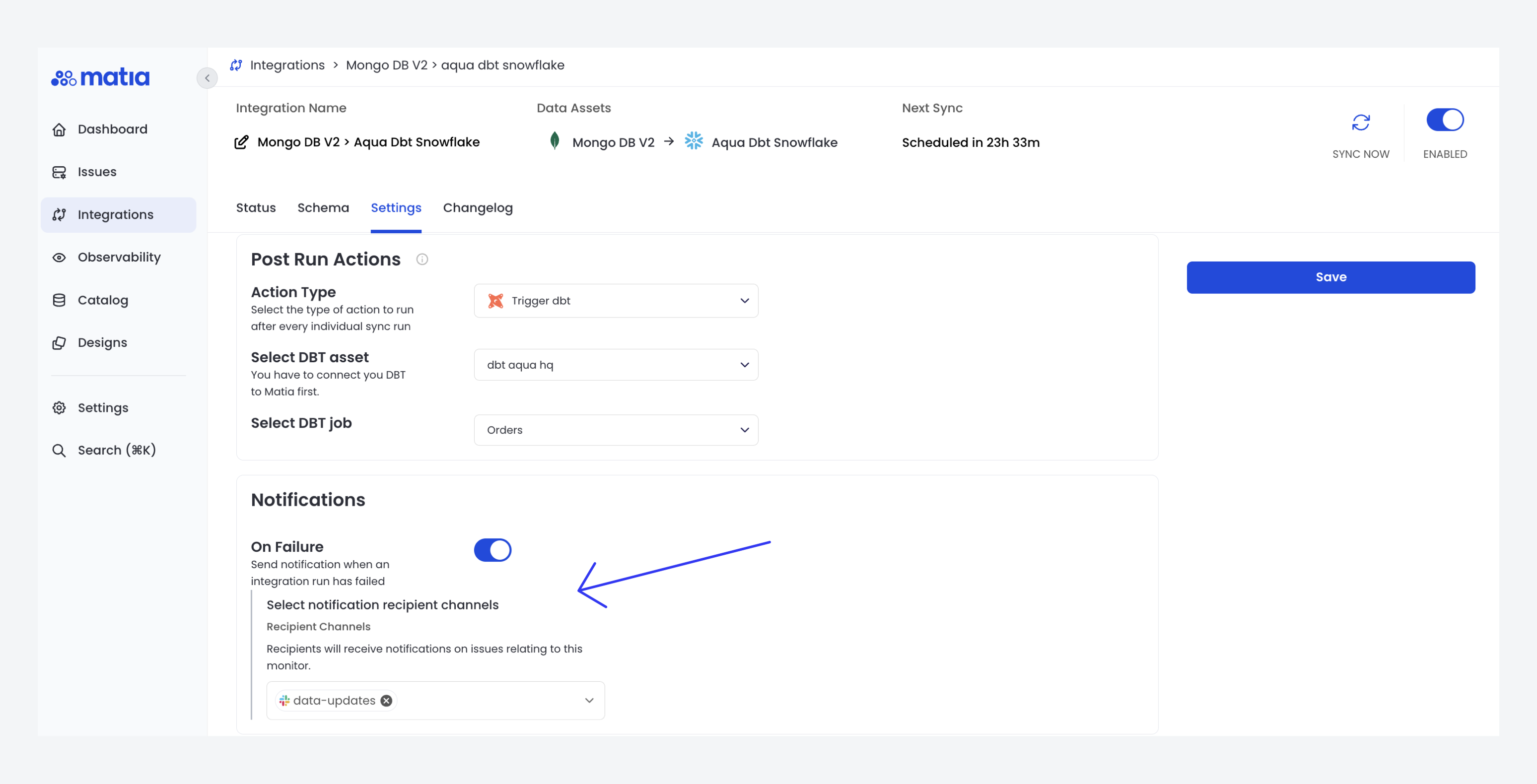
To set up notifications for a specific integration:
- Navigate to the Settings tab of the desired integration.
- Locate the Notifications section (at the bottom).
- Toggle on On Failure (for sync failures) or On Warning (for incomplete syncs).
- Select the desired recipient channel.
- Click Save to apply changes.
Custom Monitor Notifications
To set up notifications for a custom monitor:
- Navigate to the specific monitor page.
- Click on the edit option (pencil icon) at the top right of the right sidebar.
- Select the desired recipient channel.
- Click Save to apply changes.
Slack Notification Features
Matia's Slack integration supports:
-
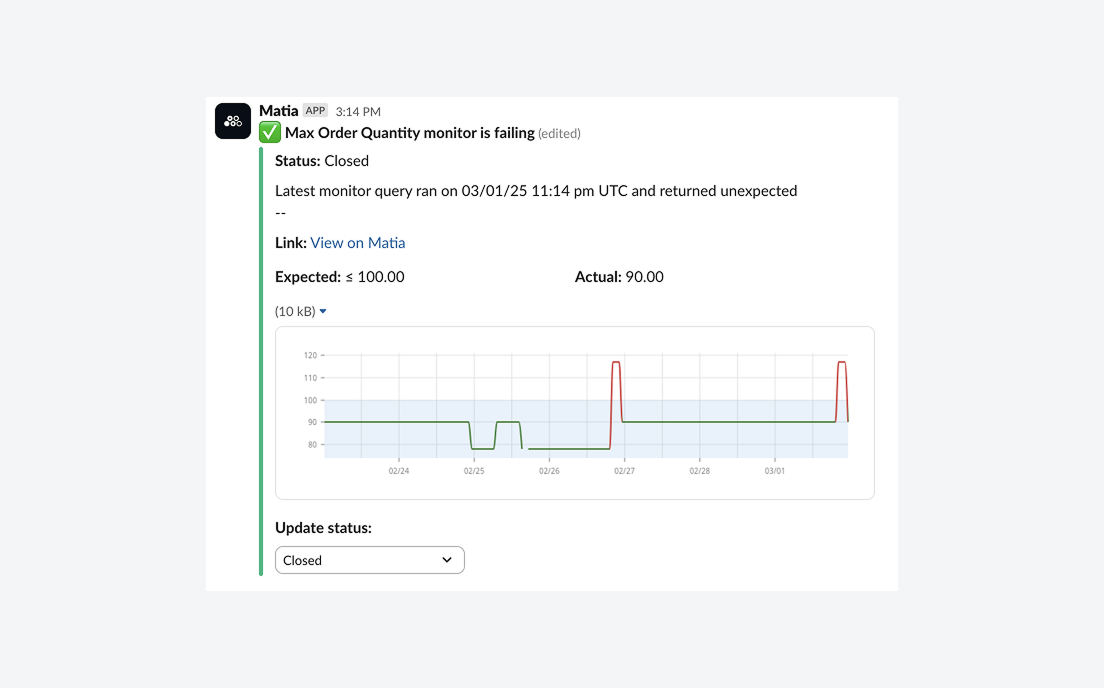
In-Slack Issue Management: Update issue statuses directly from Slack without accessing Matia.
-
Real-time Synchronization: Status updates in Matia are reflected in Slack and vice versa.
-
Automatic resolution: When Matia detects that an issue has been resolved, it closes the issue and updates the Slack message.
Viewing and Managing Notifications
All configured notifications, including integration notifications, can be viewed and managed from the main Notifications page.